October 8, 2011

 How to Enable ClearType in Windows XP


Enable ClearType for Improved Font Display
 
 
ClearType technology developed by Microsoft Corporation that improves the readability of text on existing LCD’s (Liquid Crystal Display), such as laptop, Pocket PC and flat panel monitors. In this technology, the words on your computer screen look nearly as sharp and clear as it is printed on a sheet of paper.

Follow these simple steps to Enable Clear Type in Windows XP

> First Right click on the Desktop and choose Properties.

> Click on the Appearance tab and then click Effects.


Effects pop-up window appear in the screen check the box: “Use the following method to smooth edges of screen fonts
In the drop down box select “Clear Type” option.


Click “OK” button

Difference between Standard and Clear Type


That's all.


Search Terms : ClearType Font, Windows Font, Fonts, what is clear type, how to enable clear type, enable clear type feature, Turn on Windows XP ClearType, To activate ClearType in Windows XP, Turn on ClearType, Tune Your ClearType Font Settings, Enable ClearType font smoothing in Windows XP, enable/disable Cleartype, Microsoft clear type technology, enable font smoothing,, Enable cleartype font smoothing


CAUTION! : These tips and tricks are advanced, we can not guarantee that you will be able to solve your problem that result from using tips and tricks incorrectly and is used at your own risk.
Category: Tips & Tricks
Operating System : Windows

 ClearType feature in Windows XP - Video


This video will show you what is ClearType
 ? and How it work?


If you're having trouble playing videos, we suggest you to install the latest version of the Adobe Flash player.

If you're seeing the "You need to upgrade your Adobe Flash Player to watch this video / Missing Plug-in" error,

First you can upgrade the latest version of “Adobe Flash Player” after that view/play video’s.

Get the latest Adobe Flash Player (Download Adobe Flash Player)


Search Terms : Video, ClearType Font, Windows Font, Fonts, Technology, Microsoft Fonts, Microsoft Corporation, Text, LCD Font, Liquid Crystal Display, Windows XP Fonts, what is font, Smooth Font, Computer Fonts, Clear Type,


September 3, 2011

 Show Hibernate Option on the Shut Down Dialog


Show Hibernate Option on the Shut Down dialog :
For some reason, Hibernate option may not available from the default Shutdown dialog. however you can enable it just by holding down the “SHIFT” key while the dialog is visible.


You can leave your work, shutdown your computer and resume it next time as it is Even !

First you can do The Following steps below:
Click Start button > Control Panel > Power Options > Hibernate tab > check Enable hibernation box > Apply/OK > reboot.


After

When you want to stop your work and shutdown (Keeping your programs open)

Do The Following :
1. First Click Start Button > Turn off Computer
2. The Turn Off menu comes up Hold the 'Shift' Key and 'Stand By' changes to 'Hibernate'
3. Click Hibernate (Shift Kept Pressed)


Photobucket

It will save the all work and shutdown the computer!

Now, when you switch it again it will resume it again!


No loading window that appear and you will continue your work as if you were watching the monitor was switched off and now on again!

NOTE: If the Hibernate option is not available, your system not support it!
For some reason, Hibernate, which should be accessible on power saving mode (ACPI) enabled PCs and laptops
.

That's all.

CAUTION! : These tips and tricks are advanced, we can not guarantee that you will be able to solve your problem that result from using tips and tricks incorrectly and is used at your own risk.
Category: Tips & Tricks
Operating System : Windows

 Enable Hibernate Option in Windows XP - Video


This video will show you How to Enable Hibernate Option in Windows XP / Show Hibernate Option on the Shut Down Dialog

Photobucket

If you're having trouble playing videos, we suggest you to install the latest version of the Adobe Flash player.

If you're seeing the "You need to upgrade your Adobe Flash Player to watch this video / Missing Plug-in" error,

First you can upgrade the latest version of “Adobe Flash Player” after that view/play video’s.

Get the latest Adobe Flash Player (Download Adobe Flash Player)

August 24, 2011

 How to Change the Company Name and Registered Owner in Windows


How to Change the Company Name and Registered Owner in Windows.

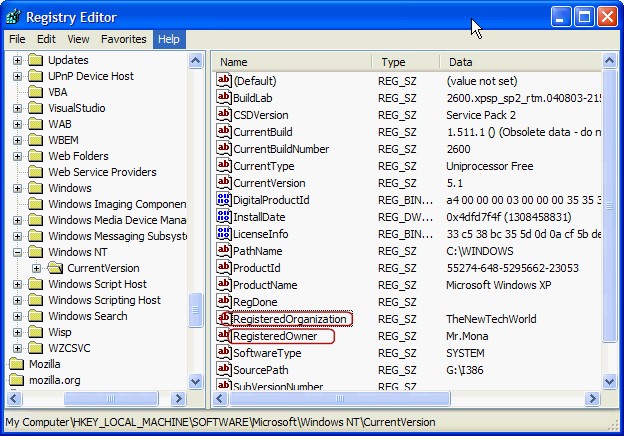
In this article, I will tell you how to change the Registered name and organization in Windows XP and Vista using the registry
This trick is useful if you incorrectly entered value at the time of Windows installation.
 

Simply do the following steps
First Click Start Button > and then click Run.
Run box will appear.
In the Run box, type regedit and then click OK.

Then locate the following key in the registry
HKEY_LOCAL_MACHINE\SOFTWARE\Microsoft\Windows NT\CurrentVersion


Find the String value “RegisteredOwner” and double click it, type the name that you want, and then click OK.


And next  find the String value “RegisteredOrganization” and double click it, type the name that you want, and then click OK.


Close the registry editor.
Finally Right click the My Computer > Click Properties


you can see the changes you made.
This trick will works on Windows Vista as well.


> You have no idea how to fix this problem automatically please download Microsoft fix it tool.
That's all.

CAUTION! : It is recommends that before you attempt to use the registry editor, make sure that you back up the whole registry or export the registry keys in the registry that you plan to edit. Incorrectly editing the registry may damage your system. Use Registry Editor at your own risk, we cannot guarantee that you can solve problems that result from using Registry Editor incorrectly.

Category: Registry Tweaks
Operating System : Windows

August 18, 2011

 How to increase Windows XP Performance


How to increase Windows XP Performance :
The computer is an essential part of today's world. We use it for entertainment, work and personal needs and the economy. This is the power of the computer for each user. While there are a lot of versions of Windows, but here are some tips to make your Windows XP to increase performance.

First, you must make sure that the windows are ready with NTFS concept. So how do you confirm what type of system you are using Windows? You just have to go to work, directly on the C drive and select Properties. Then you can see what system you use Windows. If you have Windows with FAT32 file system, then you should switch to NTFS. The main reason is that NTFS safe and reliable, more effectively with large hard drive.

Changing FAT to NTFS format.
You need to create backups of important data on your computer.
Go to the Start menu and click Run type CMD and click OK Button. You will be taken to a DOS program.
FAT32 doesn’t support files more than 4+ Giga Bytes. Here is a workaround to convert your partition to NTFS.
type C: / FS: NTFS. It will convert the Windows system from FAT32 to NTFS.

After converting from Windows, and check if the file system indexing options as well. You can do so through their ownership of C: drive to check. At the end of the qualities that you can have two check boxes, and have this drive, compress and save to hard disk and index them for faster search. Disable improve both the performance of Windows. If the box is also in a way that increases the power of finding files and folders on your computer. But reduces the storage capacity and at the end of your computer slower.

That's another thing that your computer may load more slowly. You must empty the prefetch folder in Windows. You must empty the folder every three months at least. Prefetch folder is a memory for data and applications to use regularly. You can periodically upload the data or folders quickly. But from time to time, this folder is full of data and applications are no longer used. This will affect the loading time of Windows XP and the performance, because the reference folder is loaded as well. Must emptied at least every 3 months. For your information, the contents of the folder is not critical. You can find Windows Prefetch folder in C:\WINDOWS\Prefetch

Have you ever wondered why sometimes you've been waiting for invitation to your computer? It could be because of your launcher. The computer has a lot of programs, such as mp3, download anti-virus programs and much more. This makes the operation to increase load time. You have to remove the program that is not necessary when you start Windows. To overcome this, all that you do what you need to disable any program that is not necessary. Do not worry, because this is not always uninstall. It can be used to launch the program when Windows starts. The ability for you to do this is by clicking on the Start menu and then click Run. Type MSCONFIG and you will be brought to the system configuration. To start small, and the software or program that is not so important to start Windows.

These are some things you can do to improve your computer's performance. There are a lot of other things you can do, but it would be more technical and better if you just send your computer a computer technician. I wish for a friend who really beat the computer knowledge.

That's all.

CAUTION! : These tips and tricks are advanced, we can not guarantee that you will be able to solve your problem that result from using tips and tricks incorrectly and is used at your own risk.
Category: Tips & Tricks
Operating System : Windows

April 15, 2011

 How to check Windows XP Activation

First Go to Start button à Click Run à and type  “oobe/msoobe /a(Type without quotes).

and Press Enter Key ………………


That's all.

CAUTION! : These tips and tricks are advanced, we can not guarantee that you will be able to solve your problem that result from using tips and tricks incorrectly and is used at your own risk.
Category: Tips & Tricks
Operating System : Windows

Your Ad Here