December 12, 2011

 Password Booster Screen Lock v 1.0.4.5


Lock your PC screen when the USB flash drive is removed

Password Booster Screen Lock is a free Windows program that locks your computer screen by using your USB flash drive, is extremely small and very compact program that does not consume many resources. The program can be useful on public and shared computers. The application interface comprises only Enable/Disable buttons that you disable or enable the functionality, and another button is "Setup" to configure the USB memory to use. You can also enable/disable the application by right-clicking the system tray icon. You can click the Exit button to completely terminate the Password Booster Screen Lock program. You must then login again to activate the Screen Lock, or you can launch Password Booster Screen Lock from the Start Menu.


Simply insert your USB flash drive by clicking Setup button and select register a flash drive, to make it the locking device. Once you are done, insert a USB drive in your PC (remove and reinsert if it’s already in your PC). So, with that USB device, you can block Windows without much difficulty.

Please click on the links below to download
Download Password Booster Screen Lock

Photobucket


Search Terms : Free, Download, Password Booster Screen Lock, Screen Lock Password Booster, Download Password Booster Screen Lock 1.0.4.5 Free, Lock or Unlock Your PC Using USB Drive, quickly lock and unlock your computer using a USB drive, How to Lock your PC Automatically using a USB Drive, PB Screen Lock, Lock your computer using a USB flash drive, Free Password Booster Screen Lock Download, Password Booster Screen Lock 1.0.4.1 Download, Use USB Pen Drive As Key To Lock or Unlock Windows PC, Screen Lock, Lock Your Windows PC With A USB Device, windows lock, Windows XP, Vista, Windows 7, Automatically lock USB Drive, Lock your computer,

Category: Miscellaneous
Software : Password Booster Screen Lock

 Password Booster Screen Lock - Video


This video will show you what is Password Booster Screen Lock and How it work?


If you're having trouble playing videos, we suggest you to install the latest version of the Adobe Flash player.

If you're seeing the "You need to upgrade your Adobe Flash Player to watch this video / Missing Plug-in" error,

First you can upgrade the latest version of “Adobe Flash Player” after that view/play video’s.

Get the latest Adobe Flash Player (Download Adobe Flash Player)

Search Terms: Password Booster Screen Lock Video, Screen Lock Password Booster video, Download Password Booster Screen Lock 1.0.4.5 Free video tutorial, Lock or Unlock Your PC Using USB Drive, quickly lock and unlock your computer using a USB drive video, How to Lock your PC Automatically using a USB Drive video tutorial, PB Screen Lock, Lock your computer using a USB flash drive, Free Password Booster Screen Lock Download, Password Booster Screen Lock 1.0.4.1 Download, Use USB Pen Drive As Key To Lock or Unlock Windows PC video tutorial, Screen Lock video tutorial, Lock Your Windows PC With A USB Device video tutorial, windows lock, Windows XP, Vista, Windows 7, Automatically lock USB Drive video tutorial, Lock your computer,

November 18, 2011

 How to Remove 81u3f4nt45y Virus


How to Remove 81u3f4nt45y - 24.01.2007 - SURABAYA Virus

81u3f4nt45y - 24.01.2007 - Surabaya It's a virus that often comes up at your booting, just exactly before the Windows Welcome Screen.

It shows this message: " Surabaya in my birthday
Don’t kill me, I’m just send message from your computer………………. '’ is a W32.Drower W32/Drowor.worm.


> First you must Disable System Restore point.

I will explain how to disable system restore :

STEP  1:  

> Click Start button.
Then Right-click the My Computer and then click Properties.
> Click the System Restore tab.
Check the box "Turn off System Restore" or "Turn off System Restore on all drives" as shown in this picture below.
> Click Apply.
When turning off System Restore, the existing restore points will be deleted. Click Yes.
> Click OK button.
When you have finished, restart the computer and follow the instructions in the next section to turn on System Restore.


STEP  2:

Disable "Adobe Online.com" and "Adobe Update.com"
How to Disable "Adobe Online.com" and "Adobe Update.com" :
Press Ctrl + Shift + Esc (Windows Task Manager)
Go to "Processes" tab and find “Adobe Online.com" and "Adobe Update.com"
If the file still available on "Processes", try "End Process Tree"


STEP 3:

After that open registry editor click Edit > Find > in the Find bar type Surabaya and click OK.
The location of any file that belong to Surabaya will be displayed for you. Delete any of them by right-clicking on the file on the dropdown menu and delete it.


STEP 4:

Repair Registry
How to Repair :
Open the Notepad
Copy and paste this code into your text editor and save with name "repair.inf" (Note : Select "All Files" not Text Documents)


Source Code

*******************************************************************************************************

[Version]
Signature="$Chicago$"

[DefaultInstall]
AddReg=UnhookRegKey
DelReg=del

[UnhookRegKey]
HKLM, Software\CLASSES\batfile\shell\open\command,,,"""%1"" %*"
HKLM, Software\CLASSES\comfile\shell\open\command,,,"""%1"" %*"
HKLM, Software\CLASSES\exefile\shell\open\command,,,"""%1"" %*"
HKLM, Software\CLASSES\piffile\shell\open\command,,,"""%1"" %*"
HKLM, Software\CLASSES\regfile\shell\open\command,,,"regedit.exe "%1""
HKLM, Software\CLASSES\scrfile\shell\open\command,,,"""%1"" %*"
HKLM, SOFTWARE\Microsoft\Windows NT\CurrentVersion\Winlogon, Shell,0, "Explorer.exe"
HKLM, SYSTEM\ControlSet001\Control\SafeBoot, AlternateShell,0, "cmd.exe"
HKLM, SYSTEM\ControlSet002\Control\SafeBoot, AlternateShell,0, "cmd.exe"
HKLM, SYSTEM\CurrentControlSet\Control\SafeBoot, AlternateShell,0, "cmd.exe"
HKLM, SOFTWARE\Microsoft\Windows\CurrentVersion\Explorer\Advanced\Folder\HideFileExt, UncheckedValue,0x00010001,0
HKLM, SOFTWARE\Classes\scrfile,,,"Screen Saver"

[del]
HKLM, SOFTWARE\Microsoft\Windows NT\CurrentVersion\Winlogon, LegalNoticeCaptio
HKLM, SOFTWARE\Microsoft\Windows NT\CurrentVersion\Winlogon, LegalNoticeText
HKLM, SOFTWARE\Classes\scrfile, InfoTip
HKLM, SOFTWARE\Classes\scrfile, NeverShowExt
HKLM, SOFTWARE\Classes\scrfile, TileInfo
HKCU, Software\Microsoft\Windows\CurrentVersion\Policies\System,DisableRegistryTools
HKCU, Software\Microsoft\Windows\CurrentVersion\Policies\Explorer,NoFolderOptions
HKLM, SOFTWARE\Microsoft\Windows NT\CurrentVersion\Image File Execution Options\Msconfig.exe
HKLM, SOFTWARE\Microsoft\Windows NT\CurrentVersion\Image File Execution Options\regedit.exe
HKLM, SOFTWARE\Microsoft\Windows NT\CurrentVersion\Image File Execution Options\taskmgr.exe

*******************************************************************************************************

Right Click the file and then choose "Install"


STEP 5:

Delete the Virus
How to Delete the Virus :
First open Windows Explorer or press (Ctrl + E)
Go to C:\Document and Settings\%username%\Start Menu\Programs\Startup\
Delete Adobe Online.com and Adobe Update.com
Delete folder with size +/- 40Kb, "autorun.inf", "Thumbs.com", and "Thumbs.db" within all drive


STEP 6:

Show Hidden Files
How to Show Hidden Files :
Open Command Prompt
Type:  attrib -s -h /s /d and press enter ( Note : Do it on all drives )
For Example:    C:\attrib -s -h /s /d
                        D:\attrib -s -h /s /d


>> Restart your computer before the changes that you make affect.


Note:
This virus generally reaches to your computer through any USB drive (Pen drive or Hard disc). Whenever you plug your USB drive into any other PC, infected with this virus, the virus will infect this drive and will infect the next computer, in which the drive is plugged in next time. So it’s always advisable not to open the drives directly (USB Pen drive or Hard disk does not open with double click). Instead always right click on the drive and select open option. If at all you see the first option as “autorun”, after you right click on the USB drive, this means that the drive is infected; it means that it is infected with some virus or it was infected with some virus but the autorun.inf is still in the directory of your USB device.

That's all.

Search Terms : How to, Remove SURABAYA-81u3f4nt45y-24-01-2007 Virus, Surabaya (81u3f4nt45y - 24.01.2007, booting virus, Removal 81u3f4nt45y Virus, message "81u3f4nt45y, virus 81u3f4nt45y, Virus surabaya 81u3f4nt45y, W32/VBWorm, Virus BlueFantasy 81u3f4nt45y, Fix "81u3f4nt45y-24-01-2007 surabaya virus", Worm/VB.bdy, W32/Drowor.worm,  [REMOVED]k1m0" Worm, W32.Drower, Surabaya in my birthday


CAUTION! : These tips and tricks are advanced, we can not guarantee that you will be able to solve your problem that result from using tips and tricks incorrectly and is used at your own risk.
Category: Tips & Tricks
Operating System : Windows

July 29, 2011

 How to Disable USB Mass Storage Devices


How to Disable or Enable access to USB Storage Devices

A common security anxiety at organizations allows users to connect a USB flash drive, because it can so easily copy the data. You can completely disable USB devices on writing, using a simple trick to disable USB devices. You must ensure that users are not administrators on the computer, for the reason that they can easily modify this setting back.

Follow the steps given below to disable the access to USB devices
First Click Start Button >  Click Run.
In the Run box, type regedit and then click OK.
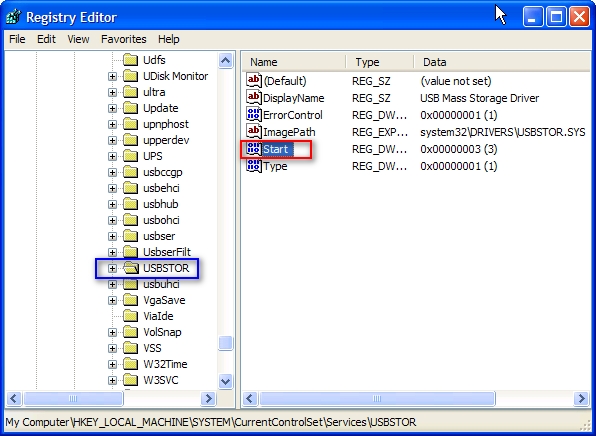
Then locate the following key in the registry
HKEY_LOCAL_MACHINE\SYSTEM\CurrentControlSet\Services\USBSTOR


In the right side panel, double click on the value start then set it a Hexadecimal value data 4.
And then click OK. (The default value is 3)


If you want to re-enable the USB ports set it a Hexadecimal value data 3.
Close the registry editor.
You'll need to reboot your computer before the changes take effect.
This trick will works on Windows Vista as well.

That's all.

CAUTION! : It is recommends that before you attempt to use the registry editor, make sure that you back up the whole registry or export the registry keys in the registry that you plan to edit. Incorrectly editing the registry may damage your system. Use Registry Editor at your own risk, we cannot guarantee that you can solve problems that result from using Registry Editor incorrectly.

Category: Registry Tweaks
Operating System : Windows

April 28, 2011

 How to fix USB device not recognized on Windows


How to fix USB device not recognized on Windows
If you receive "USB Device Not Recognized" Error Message here is a simple solution to fix this problem.

First Click Start Button >  click Run.
Run box will appear.
In the Run box, type Devmgm.msc and click OK.
A Device Manager window appear in the screen


and then expand the Universal Serial Bus controller then select Unknown Device


and Right Click the mouse select properties or Double click it 

 
In the USB Root Hub Properties dialog box, select the Power Management tab uncheck "Allow the computer to turn off this device to save power"

That's all.
Restart your computer before the changes that you make affect.


CAUTION! : These tips and tricks are advanced, we can not guarantee that you will be able to solve your problem that result from using tips and tricks incorrectly and is used at your own risk.
Category: Tips & Tricks
Operating System : Windows

April 21, 2011

 Disable Autorun on CD-Rom or USB drives


Disable Autorun on CD-Rom or USB drives
First Click Start Button >  and then click Run.
A Run box will appear.
In the Run box, type regedit and then click OK.
Then locate the following key in the registry
HKEY_CURRENT_USER\Software\Microsoft\Windows\CurrentVersion\Policies\Explorer
Double click the value > NoDriveTypeAutoRun
 Edit DWORD Value >
Set it to the value data > 000000FF > Click OK
That's all.
Close the registry Editor, you must restart your computer before the changes that you make affect.


CAUTION! : It is recommends that before you attempt to use the registry editor, make sure that you back up the whole registry or export the registry keys in the registry that you plan to edit. Incorrectly editing the registry may damage your system. Use Registry Editor at your own risk, we cannot guarantee that you can solve problems that result from using Registry Editor incorrectly.

Category: Registry Tweaks
Operating System : Windows

February 25, 2011

 USB Flash Drive


A USB flash drive is a compact and easy to use device that works like a portable hard drive. Typically USB flash drives are removable and the data is erasable/rewritable, they can hold up to 128 MB to 16 GB of information. It can easily be slip into your pocket, look like keychain. It plugs into your computer USB port. There are different types of USB flash drives available in different storage capacities and this devices goes by many names like – Jump Drive, Pocket drive, Pen drive, Thumb drive, Flash drive etc.,

January 31, 2011

 Joystick


A joystick is an input device, connect to your computer using a USB or serial port. Some older devices require a serial port connection, nowadays most of these devices connected by USB ports. Joysticks are often used to control the movements of objects displayed on the computer screen. Mostly PC games can be played with keyboard and mouse. But a serious gamer, these devices are not sufficient so most gamers like joystick, a great joystick gives you more fun and full real life experiences. Generally they are best suitable for flight simulators, action and driving games.

December 16, 2010

 Mouse


A Mouse is hand held pointing device that allows you to control your computer without having to type in instructions at the keyboard. It connected to computer by a cable. It usually contains two or three buttons.

The mouse is kept on a flat surface. When you move the mouse on the flat surface, the mouse pointer also moves in the same direction on the screen. It is used to move the cursor on the screen. And pressing the buttons on the mouse lets you select options and to execute commands on the screen. The cursor moves very fast with mouse giving you more freedom to work in any direction. Mouse is very useful and easy to choose specific options from the menu.

 There are many different types of mouse available today in the market
  
Serial Mouse : This type of mouse with a serial connector, it requires a free serial port on your PC.

PS/2 Mouse : This type of mouse is connected  to a PS/2  port.

Optical Mouse : This type of mouse uses a laser for detecting the mouse movement. It doesn’t need a mouse pad. And they are more reliable and require less maintenance.

USB Mouse : This type of mouse is connected to the USB connector and requires a free USB port.

Cordless Mouse : This type of mouse has no cable, it used batteries for its power supply. This type of mouse not connected to the computer. They used infrared or radio waves to communicate with the computer. 

Wireless Mouse : A wireless mouse is connected to the computers using Bluetooth technology, except that no cable is used to connect the mouse to the computer.


Your Ad Here