January 10, 2012

 How to Create Matrix Falling Code Effect Using NotePad


How to create falling Matrix Code Effect in Notepad

Create a falling matrix effect using notepad which will display matrix effect like you may have seen in movies that is numbers flashes in green color. The falling matrix code effect in notepad is extremely easy to do, Just add the code to a notepad file and save it as a batch (bat) file


So, here’s how to make the falling matrix code in notepad.

Open Notepad and type in the below code (or) just copy and paste it

Source Code: Download Code Below
Download Matrix.bat     Download Matrix.bat Zip


@echo off

color 02

:start

echo %random% %random% %random% %random% %random% %random% %random% %random% %random% %random%

goto start
Then save this file as Matrix.bat 
Now open this file as see matrix effect on your screen.


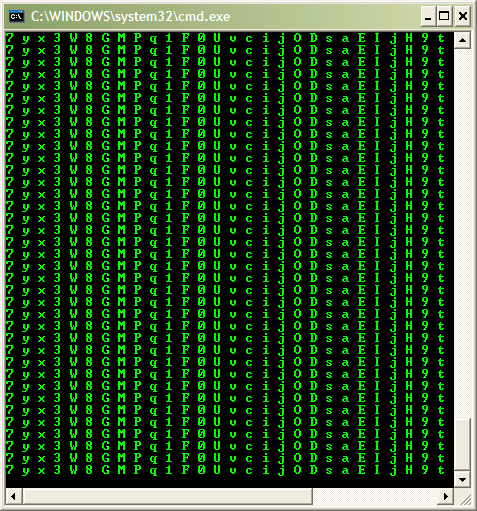
Single Character Matrix Code Effect :
Source Code: Download Code Below
 
Download Matrix2.bat      
Download Matrix2.bat Zip
Here's another Single Character Matrix code effect using notepad.
Open Notepad and type in the below code (or) just copy and paste it


@echo off
color 0a
:A
echo 7 y x 3 W 8 G M P q 1 F 0 U v c i j O D s a E I j H 9 t 6 7 z C B 4 g 8 3 W 8 G
ping localhost -n 1 > nul
goto A
Then save this file as Matrix2.bat 
Now open this file as see matrix effect on your screen. 

You can also modify this code to view your Name/Company information on this matrix screen.
Search some given text in the source code 7 y x 3 W 8 G M P q 1 F 0 U v c i j O D s a E I j H 9 t 6 7 z C B 4 g 8 3 W 8 G  then replace your Name/Company information save it as  Matrix3.bat
Now open this file you can see your Name/Company information on your screen

That's all.

Search Terms : How to, Make Matrix effect in Notepad, Create a Falling Matrix Code Effect in Notepad , The falling matrix code effect in notepad, Notepad Tricks, Matrix Falling Code Effect, Make the Matrix Raining Codes by Using Notepad, Make the Matrix with glowing letters in notepad, Matrix Effect Through Notepad, Create Matrix Effect by Notepad, Generate the Matrix Rain Effect Using Notepad, Make the matrix in batch file, Try Matrix Effect in your PC, NotePad Matrix falling effect Tutorial, Notepad tricks, Notepad effects, Notepad Matrix, Falling Matrix screen effect, Matrix.bat, CMD, Batch file, Matrix batch code, Notepad CMD BAT,


CAUTION! : These tips and tricks are advanced, we can not guarantee that you will be able to solve your problem that result from using tips and tricks incorrectly and is used at your own risk.
Category: Tips & Tricks
Operating System : Windows

January 5, 2012

 Change Your Facebook Login Screen With Your Own Picture

Change your Facebook Login Screen with your own picture


How to Change your facebook login screen with your own background
Requirement: Should have Google Chrome installed in your Computer/Laptop
1. First Download Extension here
2. After clicking that link, wait for few seconds
3. At the right upper corner of the page again, click “ADD TO CHROME” Button
Complete the process you can customize it with your own picture

How to change/customize the image with your own picture?
First Go to Settings – Tools – Extensions (or) Go to your extensions page type chrome://extensions/


Find the “FB Refresh” Extension then click “Options”
Select your image URL in the box then select if you want it to repeat horizontally or vertically


Then save the settings.
Open your Facebook.com (while you are logged out) and enjoy!


I hope you enjoy it and find it useful to you.

Search Terms : How to, Changes Facebook Login Background, Changes Facebook Login screen, Free, FB Refresh download, Free Download FB Refresh, FB Refresh, Facebook Refresh, Facebook, Facebook homepage, FB refresh extension, Images for FB refresh, FB refresh images, FB refresh backgrounds, FB refresh Wallpapers, Refresh your facebook background, Trick for Change Facebook Login Screen, Facebook Login Page changer tip, Change Facebook login page style, How to change Facebook Login Page, Chrome Web Store, FB refresh pictures, FB refresh photos, facebook wallpapers


Category: Miscellaneous
Chrome Extension : FB Refresh

 How to Change Facebook Login Screen - Video


This video will show you how to change Facebook login Screen?


If you're having trouble playing videos, we suggest you to install the latest version of the Adobe Flash player.

If you're seeing the "You need to upgrade your Adobe Flash Player to watch this video / Missing Plug-in" error,

First you can upgrade the latest version of “Adobe Flash Player” after that view/play video’s.

Get the latest Adobe Flash Player (Download Adobe Flash Player)

Search Terms : Video, Videos, How to, Changes Facebook Login Background video tutorial, Changes Facebook Login screen, Free, FB Refresh download, Free Download FB Refresh, FB Refresh, Facebook Refresh, Facebook, Facebook homepage, FB refresh extension, Images for FB refresh, FB refresh images, FB refresh backgrounds, FB refresh Wallpapers, Refresh your facebook background video tutorial, Trick for Change Facebook Login Screen video, Facebook Login Page changer video tip, Change Facebook login page style video tutorial, How to change Facebook Login Page video, Chrome Web Store, FB refresh pictures, FB refresh photos, facebook wallpapers


December 12, 2011

 Password Booster Screen Lock v 1.0.4.5


Lock your PC screen when the USB flash drive is removed

Password Booster Screen Lock is a free Windows program that locks your computer screen by using your USB flash drive, is extremely small and very compact program that does not consume many resources. The program can be useful on public and shared computers. The application interface comprises only Enable/Disable buttons that you disable or enable the functionality, and another button is "Setup" to configure the USB memory to use. You can also enable/disable the application by right-clicking the system tray icon. You can click the Exit button to completely terminate the Password Booster Screen Lock program. You must then login again to activate the Screen Lock, or you can launch Password Booster Screen Lock from the Start Menu.


Simply insert your USB flash drive by clicking Setup button and select register a flash drive, to make it the locking device. Once you are done, insert a USB drive in your PC (remove and reinsert if it’s already in your PC). So, with that USB device, you can block Windows without much difficulty.

Please click on the links below to download
Download Password Booster Screen Lock

Photobucket


Search Terms : Free, Download, Password Booster Screen Lock, Screen Lock Password Booster, Download Password Booster Screen Lock 1.0.4.5 Free, Lock or Unlock Your PC Using USB Drive, quickly lock and unlock your computer using a USB drive, How to Lock your PC Automatically using a USB Drive, PB Screen Lock, Lock your computer using a USB flash drive, Free Password Booster Screen Lock Download, Password Booster Screen Lock 1.0.4.1 Download, Use USB Pen Drive As Key To Lock or Unlock Windows PC, Screen Lock, Lock Your Windows PC With A USB Device, windows lock, Windows XP, Vista, Windows 7, Automatically lock USB Drive, Lock your computer,

Category: Miscellaneous
Software : Password Booster Screen Lock

 Password Booster Screen Lock - Video


This video will show you what is Password Booster Screen Lock and How it work?


If you're having trouble playing videos, we suggest you to install the latest version of the Adobe Flash player.

If you're seeing the "You need to upgrade your Adobe Flash Player to watch this video / Missing Plug-in" error,

First you can upgrade the latest version of “Adobe Flash Player” after that view/play video’s.

Get the latest Adobe Flash Player (Download Adobe Flash Player)

Search Terms: Password Booster Screen Lock Video, Screen Lock Password Booster video, Download Password Booster Screen Lock 1.0.4.5 Free video tutorial, Lock or Unlock Your PC Using USB Drive, quickly lock and unlock your computer using a USB drive video, How to Lock your PC Automatically using a USB Drive video tutorial, PB Screen Lock, Lock your computer using a USB flash drive, Free Password Booster Screen Lock Download, Password Booster Screen Lock 1.0.4.1 Download, Use USB Pen Drive As Key To Lock or Unlock Windows PC video tutorial, Screen Lock video tutorial, Lock Your Windows PC With A USB Device video tutorial, windows lock, Windows XP, Vista, Windows 7, Automatically lock USB Drive video tutorial, Lock your computer,

August 17, 2011

 Dog And Cat Licking Screen Cleaner Screen Saver


Dog and Cat Licking Screen Cleaner Screen Saver:

Dog Licking Screen Cleaner Screen Saver :


This cute little pug (little dog) licking your computer screen clean. There is no spyware or adware in this screen saver with include nice sound. If you don’t like the sound, you can disable the sound option in Windows screen saver settings.
Photobucket


Download Screensaver

Cat Licking Screen Cleaner Screen Saver:


This cute little kitten try to lick your screen clean. There is no spyware or adware in this screen saver with include nice sound. You can also disable the sound option in Windows screen saver settings. 

Photobucket


Download Saver


Developer : Nuganics
website : http://www.nuganics.com.au


Category: Miscellaneous
Requirements : Windows Media Player

May 14, 2011

 Remove / Disable Windows Boot Logo


How to Remove / Disable Windows Boot Logo

Disable or remove the Boot logo / Splash screen which will speed up the Windows boot process by a few seconds.

If you remove or disable the boot logo, you will additionally not be able to see any boot messages, such as check disk.

You can remove the boot logo, follow these steps below

First Click Start  Button > Click Run.
Run box will appear.

1. In the Run box, type msconfig and click OK.


2. In the System Configuration Utility, click the BOOT.INI tab.  


3. On the BOOT.INI tab, see the Boot options click the /NOGUIBOOT check box, Click OK


Restart your computer before the changes that you make affect.
That's all.

CAUTION! : These tips and tricks are advanced, we can not guarantee that you will be able to solve your problem that result from using tips and tricks incorrectly and is used at your own risk.
Category: Tips & Tricks
Operating System : Windows

January 26, 2011

 Digitizer


Digitizer (also known as Drawing Tablets, Graphics Tablets and Digitizer Tablets) is a graphical input device that convert analog documents, graphic, picture, maps and other data into digital form which can be sent to the computer for processing and storage in memory. It is also called pointer device or optical device. An example of digitizer is a Graphic Tablet. This input device is very useful when drawing large drawings, maps etc, and also great time savers when entering data into CAD (Computer Aided Design) programs. Digitizer generally used in Auto CAD (Computer Aided Design) and Geographic Information System (GIS) applications.

A digitizer consists of a flat glossary surface and a pointing device similar to a pen, when the pointing device moves across the glassy surface a pointer on the screen moves according to the pointer device movements. We can draw picture/image/map or select an application by pressing the pointing device and moves it according to the picture.

December 8, 2010

 Monitor

Monitor is also known as VDU (Visual Display Unit) or Screen. It is Similar  to  a  television, monitor  is a commonly used output device. A Keyboard is used to input data and receive massages from the computer. Whatever is typed on keyboard gets displayed on the monitor. The monitor displays text, pictures, graphics and other items from the computer on a screen.  A monitor has its own box which is separated from the main computer system and it is connected to the computer by cable. A basic monitor displays up to 24 lines of 80 columns of standard characters..

There are different types of monochrome (single color) and color monitors available in the market.

(i) Monochrome Graphics Adopter (MGA):
It works as a color graphics adopter without a color card.


(ii) Monochrome Display Adopter (MDA):It does not have color or graphics capability. It can display only text characters in one color, bright or dim underlined in the reverse image.

(iii) Color Graphic Adopter (CGA):It can display both text and graphics. It can display upto 16 different colors. It cannot display text characters clearly as the MDA.

(iv) Enhanced Graphics Adopter (EGA) :It can also perform in its own modes display upto 64 colors and monochrome graphics and text characters.

(v) Herculer Graphics Adopter (HGA) :It can produce both quality text images and very high revolution of color graphics. It can display only 2 colors of graphics.

(vi) Visual Graphics Adopter (VGA):It has a range of high resolution. It also supports upto 256 colors of grey. Today the upper end varieties of this adopter called super Visual Graphics Adopter (SVGA) are also available.


There are different types of computer monitors  available  in a variety of colors, shapes and designs

Look at the Three main types of monitors:
1) CRT (Cathode Ray Tube monitor)
2) LCD monitor (
Liquid Crystal Display)
3) TFT monitor (Thin Film Transistor)

CRT Monitor (Cathode Ray Tube):


CRT stands for cathode ray tube. The cathode ray tube made up of metal and glass. Cathode Ray Tube technology was invented more than 100 years ago. A CRT monitor contains millions of tiny red, green, and blue phosphor dots. It uses the pixels created to project an image on the screen. The CRT monitor comes in 15 inch to 21 inch sizes and larger, It looks like TV screen. It resolution up to 2048 x 1536 pixels.

-> Measuring Quality of CRT Monitor
The quality of CRT monitor depends on the following factors.
i)   Resolution
ii)  Dot pitch
iii) Refresh rate

- Different types of CRT Monitors measurements
Screen Size (Diagonal)
Width (inches)
Height  (inches)
9”
7.2
5.4
14”
11.2
8.4
15”
12.0
9.0
17”
13.6
1.2
21”
16.8
12.6


- - - - - - - - - - - - - - - - - - - - - - - - - - - - - - - - - - - - - - - - - - - - - - - - - - - - - - - - - - - - - 

LCD Monitor (Liquid Crystal Display) :

In 1888, the Austrian botanist Friedrich Reinitzer discover liquid crystals. This type of monitors based on LCD (liquid crystal display) technology. LCD also called flat panels.   LCD monitor is also called an Flat Panel Monitor because they are flat and thin. Liquid Crystal Displays are smaller size and use less energy than a CRT (cathode ray tube) monitor. These types of monitors are most popular for flat panel desktop monitors.

- Different types of LCD Monitors Size and  Resolution.

LCD Size
Resolution
13.5”
800X600
14.5”
1024X768
18”
1600X1200


- - - - - - - - - - - - - - - - - - - - - - - - - - - - - - - - - - - - - - - - - - - - - - - - - - - - - - - - - - - - -

TFT Monitor (Thin Film Transistor) : 


It Stands for Thin Film Transistor. TFT monitor that uses thin film transistor (TFT) technology. The color per pixel is due to the frequency of power put through the pixel. TFT technology is much secure, reliable and generates better picture quality.

- - - - - - - - - - - - - - - - - - - - - - - - - - - - - - - - - - - - - - - - - - - - - - - - - - - - - - - - - - - - - 

- Different types of Display Standards :


MDA
Monochrome Display Adapter
CGA
Color Graphics Adaptor
EGA
Enhanced Graphics Adaptor
VGA
Video Graphics Array
SVGA
Super Video Graphics Array
WVGA
Wide Video Graphics Array
FWVGA
Full Wide Video Graphics Array
QVGA
Quarter Video Graphics Array
WQVGA
Wide Quarter Video Graphics Array
HQVGA
Half  Quarter Video Graphics Array
QVGA
Quarter Video Graphics Array
HVGA
Half-size Video Graphics Array
WSVGA
Wide Supper Video Graphics Array
XGA
Extended Graphics Array
WEGA
Wide Extended Graphics Array
SEGA
Super Extended Graphics Array
UEGR
Ultra Extended Graphics Array
WUXGA
Wide Ultra Extended Graphics Array
QEGA
Quad Extended Graphics Array
WQXGA
Wide Quad Extended Graphics Array
QWXGA
Quad Wide Extended Graphics Array
QSXGA
Quad Super Extended Graphics Array
WQSXGA
Wide Quad Super Extended Graphics Array
QUXGA
Quad Ultra Extended Graphics Array)
WQUXGA
Wide Quad Ultra Extended Graphics Array
HXGA
Hex Extended Graphics Array
WHXGA
Wide Hex Extended Graphics Array
HSXGA
Hex Super Extended Graphics Array
WHSXGA
Wide Hex Super Extended Graphics Array
HUXGA
Hex Ultra Extended Graphics Array
WHUXGA
Wide Hex Ultra Extended Graphics Array
WQHD
Wide Quad High Definition
QFHD
Quad Full High Definition


- Display Standards Color and Resolutions (in pixels)

Display
Resolution
Color
MDA
720x350
1
VGA
640x480
16
XGA
1024x768
8 bits 256
16 bits 65,536
SVGA
800x600
1024x768
1280x1024
1600x1200
16.7 million
16.7 million
16.7 million
16.7 million
SXGA
1280 x1024
16.7 million
WSXGA
1600 x 1024
16.7 million
UXGA
1600x1200
16.7 million
WUXGA
1920x1200
16.7 million

Your Ad Here