February 26, 2012

 Make Your Computer Speak Everything You Type


How to Make your computer Speak everything you type


This is very good and interesting trick which let your computer speaks whatever you type. It’s pretty cool.  Just run this script and make it read any funny sentence. There is no requirement of any software. Just follow below simple steps.

Here’s how you do it:
1) Open Notepad and type or copy the following text into a new document

Dim message, sapi
message=InputBox("Enter the text you want spoken","TheNewTechWorld")
Set sapi=CreateObject("sapi.spvoice")
sapi.Speak message


You have no idea how to save this code please download Code or VB script  file.
Source Code: Download Code/VB Script Below


2) Now save the Notepad file, give it any name, but make sure you also type .VBS after the name (Example: Talk.vbs). Also, for the Save as type box, choose All files instead of the default Text Documents.

3) After doing this, just close the notepad file and run the script. You will come across a box as shown below. 


Type anything you want in there and have fun. The default voice is quite funny but its fun.

Note:- This trick works only with windows XP. If it works on any other version of windows, do let me know:)

That's all.


Search Terms : convert your computer in to a text to voice software, Computer Hacking, Speech Application, Learn To Hack, visual basic trick, visual basic script, Funny vbs script, Create your own text to voice software, application, Get Your Computer to Say What You Type, How to make your computer talk/speak what you type, Make your pc speak whatever you type, vbs script, Speech Recognition Tools, Make your Computer Talk, Computer Speak, Funny VBS Trick, How do you make your computer speak what you type
 

CAUTION! : These tips and tricks are advanced, we can not guarantee that you will be able to solve your problem that result from using tips and tricks incorrectly and is used at your own risk.
Category: Tips & Tricks
Operating System : Windows

 Make Your Computer Say Whatever You Type - Video


This video will show you how do you make your computer speak what you type


For more information click on the links below


If you're having trouble playing videos, we suggest you to install the latest version of the Adobe Flash player.

If you're seeing the "You need to upgrade your Adobe Flash Player to watch this video / Missing Plug-in" error,

First you can upgrade the latest version of “Adobe Flash Player” after that view/play video’s.

Get the latest Adobe Flash Player (Download Adobe Flash Player)


Search Terms : How, How to, How do, Windows Speech Application video, Learn To Hack, visual basic trick video, visual basic script video tutorial, Funny vbs script video, Create your own text to voice software video tutorial, application, Get Your Computer to Say What You Type video, How to make your computer talk/speak what you type video tutorial, Make your pc speak whatever you type video, vbs script, Speech Recognition Tools video, Make your Computer Talk video tutorial, Computer Speak video, Funny VBS Trick video tutorial, How do you make your computer speak what you type video tutorial

January 10, 2012

 How to Create Matrix Falling Code Effect Using NotePad


How to create falling Matrix Code Effect in Notepad

Create a falling matrix effect using notepad which will display matrix effect like you may have seen in movies that is numbers flashes in green color. The falling matrix code effect in notepad is extremely easy to do, Just add the code to a notepad file and save it as a batch (bat) file


So, here’s how to make the falling matrix code in notepad.

Open Notepad and type in the below code (or) just copy and paste it

Source Code: Download Code Below
Download Matrix.bat     Download Matrix.bat Zip


@echo off

color 02

:start

echo %random% %random% %random% %random% %random% %random% %random% %random% %random% %random%

goto start
Then save this file as Matrix.bat 
Now open this file as see matrix effect on your screen.


Single Character Matrix Code Effect :
Source Code: Download Code Below
 
Download Matrix2.bat      
Download Matrix2.bat Zip
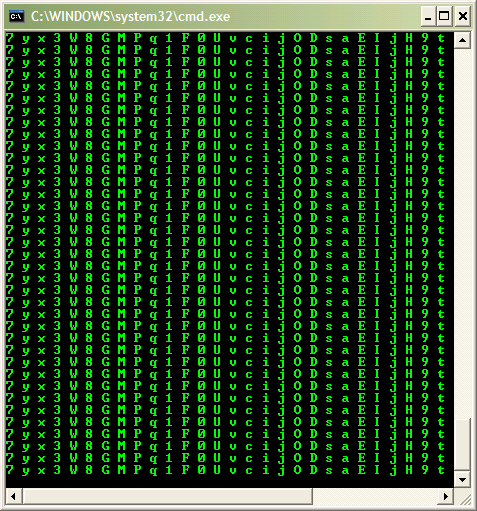
Here's another Single Character Matrix code effect using notepad.
Open Notepad and type in the below code (or) just copy and paste it


@echo off
color 0a
:A
echo 7 y x 3 W 8 G M P q 1 F 0 U v c i j O D s a E I j H 9 t 6 7 z C B 4 g 8 3 W 8 G
ping localhost -n 1 > nul
goto A
Then save this file as Matrix2.bat 
Now open this file as see matrix effect on your screen. 

You can also modify this code to view your Name/Company information on this matrix screen.
Search some given text in the source code 7 y x 3 W 8 G M P q 1 F 0 U v c i j O D s a E I j H 9 t 6 7 z C B 4 g 8 3 W 8 G  then replace your Name/Company information save it as  Matrix3.bat
Now open this file you can see your Name/Company information on your screen

That's all.

Search Terms : How to, Make Matrix effect in Notepad, Create a Falling Matrix Code Effect in Notepad , The falling matrix code effect in notepad, Notepad Tricks, Matrix Falling Code Effect, Make the Matrix Raining Codes by Using Notepad, Make the Matrix with glowing letters in notepad, Matrix Effect Through Notepad, Create Matrix Effect by Notepad, Generate the Matrix Rain Effect Using Notepad, Make the matrix in batch file, Try Matrix Effect in your PC, NotePad Matrix falling effect Tutorial, Notepad tricks, Notepad effects, Notepad Matrix, Falling Matrix screen effect, Matrix.bat, CMD, Batch file, Matrix batch code, Notepad CMD BAT,


CAUTION! : These tips and tricks are advanced, we can not guarantee that you will be able to solve your problem that result from using tips and tricks incorrectly and is used at your own risk.
Category: Tips & Tricks
Operating System : Windows

 Make Falling Matrix Code Effect in Notepad - Video


This video will show you falling matrix effect using notepad and How to create Matrix Effect?


If you're having trouble playing videos, we suggest you to install the latest version of the Adobe Flash player.

If you're seeing the "You need to upgrade your Adobe Flash Player to watch this video / Missing Plug-in" error,

First you can upgrade the latest version of “Adobe Flash Player” after that view/play video’s.

Get the latest Adobe Flash Player (Download Adobe Flash Player)

Search Terms : How to, Make Matrix effect in Notepad Video, Create a Falling Matrix Code Effect in Notepad Video , The falling matrix code effect in notepad video tutorial, Notepad Tricks videos, Matrix Falling Code Effect video, Make the Matrix Raining Codes by Using Notepad video tutorial, Make the Matrix with glowing letters in notepad, Matrix Effect Through Notepad, Create Matrix Effect by Notepad, Generate the Matrix Rain Effect Using Notepad, Make the matrix in batch file, Try Matrix Effect in your PC video, NotePad Matrix falling effect Tutorial, Notepad tricks videos, Notepad effects videos, Notepad Matrix video, Falling Matrix screen effect video tutorial


May 13, 2011

 Notepad Trick - World Trade Center


Notepad Trick - World Trade Center:
Notepad know about 09/11/2001, the flight number which hit the World Trade Center on 11 September 2001 New York was Q33N !

1. Click the Start Menu > Programs > Accessories > Notepad


2. Type : Q33N

3. Then Go to Format menu

4. Choose Font option
5. Now, Increase the font size to ‘72’


6. Change the font to 'Wingdings'


Wow…. It’s amazing!


Category: Easter Eggs
Requirements : Notepad


Your Ad Here