


 How to Create Matrix Falling Code Effect Using NotePad

How to create falling Matrix Code Effect in Notepad
Create a falling matrix effect using notepad which will display matrix effect like you may have seen in movies that is numbers flashes in green color. The falling matrix code effect in notepad is extremely easy to do, Just add the code to a notepad file and save it as a batch (bat) file


So, here’s how to make the falling matrix code in notepad.
Open Notepad and type in the below code (or) just copy and paste it
@echo off
color 02
:start
echo %random% %random% %random% %random% %random% %random% %random% %random% %random% %random%
goto start
color 02
:start
echo %random% %random% %random% %random% %random% %random% %random% %random% %random% %random%
goto start
Then save this file as Matrix.bat
Now open this file as see matrix effect on your screen.

Single Character Matrix Code Effect :
Source Code: Download Code Below
Download Matrix2.bat
Download Matrix2.bat Zip
Source Code: Download Code Below
Download Matrix2.bat
Download Matrix2.bat Zip
Here's another Single Character Matrix code effect using notepad.
Open Notepad and type in the below code (or) just copy and paste it
@echo off
color 0a
:A
echo 7 y x 3 W 8 G M P q 1 F 0 U v c i j O D s a E I j H 9 t 6 7 z C B 4 g 8 3 W 8 G
ping localhost -n 1 > nul
goto A
Then save this file as Matrix2.bat
Now open this file as see matrix effect on your screen.
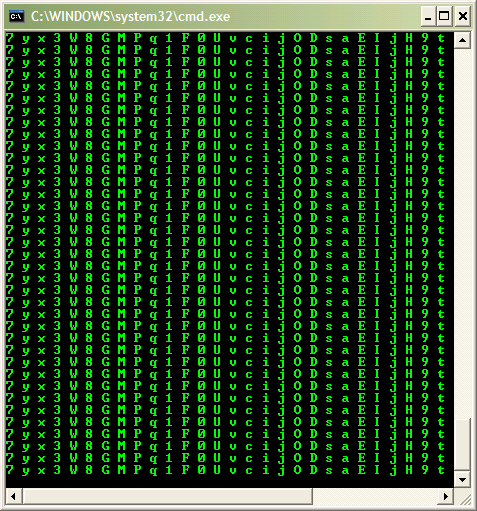
You can also modify this code to view your Name/Company information on this matrix screen.
Search some given text in the source code 7 y x 3 W 8 G M P q 1 F 0 U v c i j O D s a E I j H 9 t 6 7 z C B 4 g 8 3 W 8 G then replace your Name/Company information save it as Matrix3.bat
Now open this file you can see your Name/Company information on your screen
That's all.
Search Terms : How to, Make Matrix effect in Notepad, Create a Falling Matrix Code Effect in Notepad , The falling matrix code effect in notepad, Notepad Tricks, Matrix Falling Code Effect, Make the Matrix Raining Codes by Using Notepad, Make the Matrix with glowing letters in notepad, Matrix Effect Through Notepad, Create Matrix Effect by Notepad, Generate the Matrix Rain Effect Using Notepad, Make the matrix in batch file, Try Matrix Effect in your PC, NotePad Matrix falling effect Tutorial, Notepad tricks, Notepad effects, Notepad Matrix, Falling Matrix screen effect, Matrix.bat, CMD, Batch file, Matrix batch code, Notepad CMD BAT,
CAUTION! : These tips and tricks are advanced, we can not guarantee that you will be able to solve your problem that result from using tips and tricks incorrectly and is used at your own risk. |
Category: Tips & Tricks | Operating System : Windows |


