November 19, 2011

 Restart Computer Directly into “Safe Mode”


BootSafeXP is a Windows portable utility to quickly restart Windows XP in Safe Mode. Once started in Safe Mode, you will automatically restart in Normal Mode on the next reboot, unless you run BootSafeXP again while in Safe Mode. This helps you avoid continuously tapping the F8 while restarting the PC.

This utility may be run from a Flash drive, CD or other Portable Devises that means simply copy the BootSafeXP.exe to your portable medium.  


This utility may be work on other Microsoft Windows Versions. This requires standard VB6SP6 Runtime files so you can download from www.Microsoft.com most systems have these already, but if something isn't working properly, download them and try again. When using the installer package, these files are available and will be installed automatically.

Please click on the links below to download

Photobucket


Search Terms : How to, Windows XP, Vista, Windows 7, Boot Windows XP Into Safe Mode, Start Windows in Safe Mode, restart directly into Safe Mode, Start the computer in safe mode, Computer Will Only Boot in Safe Mode, restart the computer in Safe Mode, reboot computer in Safe mode, Restart Windows in Safe Mode, reboots when entering Safe Mode, Computer Boots Directly Into Safe Mode, Computer Starts Only in Safe Mode, Starting Windows XP in Safe Mode, PC Boots to Safe Mode only, boot up a computer in safe mode, Always boots into Windows safe mode


Category: Miscellaneous
Software : BootSafeXP

July 16, 2011

 How to Create Auto Run / Auto Play CD/DVD

How to Create Auto Run / Auto Play CD/DVD :

The application CD’s or games cd’s that you purchase and insert into your cd/dvd drive they will run/play automatically, and your burned CD’s can not do the same….. why?


You can bring into run a setup program, or there is an HTML page that links to the CD contents. You can simply open the Notepad to create a three line text file based on the lines below, and name it Autorun.inf.  

I will explain to you how to easily create Autorun CD

First you can create your own autorun.inf file
Open Notpad then type the following three lines are an example of a simple Autorun.inf file.

[autorun]
open=setup.exe
icon=myicon.ico


Once the above three lines have been typed in, save file as Autorun.inf

Set on all files in the CD's root directory
If you would like to change the default windows cd icon to your own icon place the icon in to CD's root directory. 


 Default windows icon


Your own icon


Do not use any spaces between the file names that you're linking to, all the time replace the spaces with underscores “ _

Example:    my_setup.exe
                  my_icon.ico


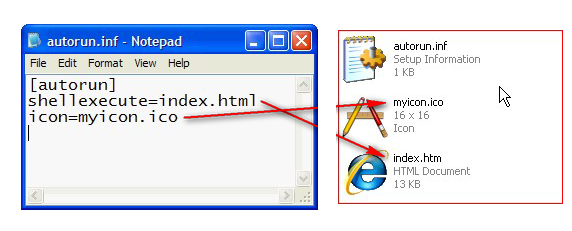
  • You can run pdf, doc, html files to run/play automatically using the 'shellexecute' command
For an example
i) Run HTML file automatically

[autorun]
shellexecute=index.html
icon=myicon.ico


Replace index.html to your own html file name  ex: yourindex.html
and change myicon.ico to your icon file name ex: youriconname.ico

ii) Run PDF file automatically

[autorun]
shellexecute=mybook.pdf
icon=myicon.ico


Replace mybook.pdf to your pdf file name ex: yourbookname.pdf
and change myicon.ico to your icon file name ex: youriconname.ico


iii) Run DOC file automatically

[autorun]
shellexecute=mydocument.doc
icon=myicon.ico


Replace mydocument.doc to your doc file name ex: yourdocument.doc
and change myicon.ico to your icon file name ex: youriconname.ico


Do not use any spaces between the file names, always replace the spaces with underscores “ _  “


And you can create any file like mp3, jpeg, mpeg, wmv and other files run automaticaly follow the same steps given above. Don’t forget the file name and extension must match exactly for shellexecute to work properly.

That's all.

CAUTION! : These tips and tricks are advanced, we can not guarantee that you will be able to solve your problem that result from using tips and tricks incorrectly and is used at your own risk.
Category: Tips & Tricks
Operating System : Windows
Your Ad Here